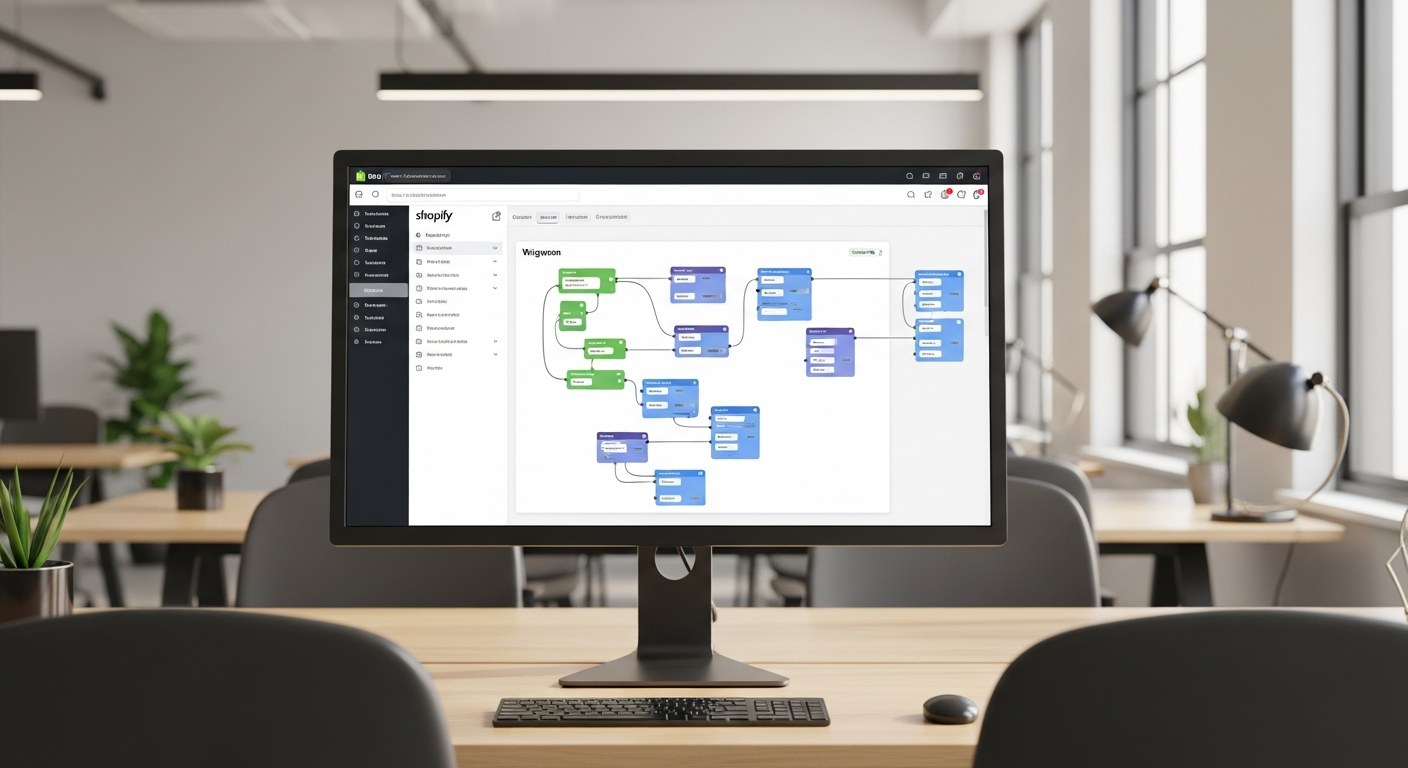
Shopify Flow Automation: 10 Workflows Every Store Should Run
Shopify Flow automation workflows are the fastest way to reclaim operational hours on a Shopify Plus store — without writing a single line of code. Most Shopify Plus merchants have Flow turned on and use exactly zero of its capabilities. The platform can automate fraud flagging, VIP customer tagging, low-inventory alerts, reorder triggers, loyalty workflows, and post-purchase operations — all running silently in the background while your team focuses on growth work. Brands running 5+ active flows recover an average of 8–12 hours of manual ops work per week.
TL;DR — Key Takeaways
- Shopify Flow is free for Shopify Plus merchants and available in limited form on standard plans
- A single well-configured flow can eliminate hours of weekly manual work and reduce human error in ops
- The 10 core workflows cover fraud, VIP tagging, inventory, loyalty, subscriptions, B2B, and customer service escalation
- Flow is not an email or SMS tool — pair it with Klaviyo for customer-facing communication triggered by Flow events
- Testing before activation is non-negotiable; a misconfigured flow runs on live data and can flag or tag incorrectly at scale
What Is Shopify Flow and Who Can Use It
Shopify Flow is a native automation builder built directly into Shopify. It lets you create conditional "if this, then that" logic without code — choose a trigger event (something that happens in your store), add conditions (filters that determine whether the flow should run), and define actions (what happens when those conditions are met). The interface is visual and drag-and-drop; no developer required for standard use cases.
Originally launched as a Shopify Plus exclusive, Flow has expanded access to most paid Shopify plans. Core triggers — order created, customer created, inventory level changed — are available across plans. The Shopify Plus tier unlocks additional enterprise triggers: B2B order events, multi-location inventory management, custom metafield updates, and more sophisticated condition logic. If you're on a standard plan, you'll get the fundamentals; if you're on Plus, you get the full toolkit.
Access it at: Shopify Admin → Automations → Flow. You'll see a library of pre-built templates to start from, plus the option to build from scratch. Templates cover the most common use cases; use them as a starting point and customize conditions to match your store's logic.
One clarification that comes up constantly: Flow is not an email sender. It manages store-side data and operations. If you want Flow to send a customer email when a tag is applied, that happens through Klaviyo picking up the tag event — not through Flow itself. We'll cover the tool hierarchy in detail later.
The 10 Workflows Every Store Should Activate First
These workflows cover the highest-leverage automation opportunities across operations, customer management, and fulfillment. Start with these, get them stable, then layer in custom workflows specific to your store.
1. Fraud Risk Flagging — Auto-Hold Suspicious Orders
Trigger: Order created
Condition: Risk level = High (Shopify's built-in fraud analysis score)
Action: Add order tag "fraud-review" + Cancel auto-fulfillment + Send internal email to ops team
Without this flow, high-risk orders enter your fulfillment queue alongside legitimate orders. A team member has to manually review every order or risk shipping fraudulent purchases and eating the chargeback. This flow catches high-risk orders at creation, holds them before fulfillment triggers, and surfaces them to your review queue automatically. Pair it with a "fraud-cleared" manual tag that removes the hold after review.
2. VIP Customer Tagging — Identify Your Best Buyers Automatically
Trigger: Order paid
Condition: Customer total spent > $500 AND order count > 2
Action: Add customer tag "vip"
Your CRM and email platform need to know who your highest-value customers are. Manual VIP identification is impossible at scale; this flow handles it automatically the moment a customer crosses your threshold. Klaviyo then picks up the "vip" tag and enters them into a VIP treatment sequence — exclusive offers, early access, dedicated support routing. Adjust the dollar and order thresholds to match your store's actual customer value distribution.
3. Low Inventory Alert — Internal Notification Before Stockout
Trigger: Inventory level updated
Condition: Inventory quantity drops below 10 (or your reorder threshold)
Action: Send internal email to purchasing team with product name, SKU, and current count
Stockouts are preventable. Most happen because someone had to manually monitor inventory levels and missed it during a busy week. This flow fires the moment a product variant crosses your reorder threshold, sending a procurement alert before you hit zero. Set the condition threshold based on your lead time from supplier — if replenishment takes 14 days and you sell 2 units/day, your threshold should be 28 units, not 10.
4. First-Time Buyer Tag — Trigger the Welcome Experience
Trigger: Order paid
Condition: Customer orders count = 1
Action: Add customer tag "first-time-buyer"
Your post-purchase first-impression window is 24–48 hours after the first order. Klaviyo picks up the "first-time-buyer" tag and fires a first-purchase email sequence: order confirmation, shipping update, usage guide or unboxing tips, and a second-purchase incentive sent 7–10 days later. Without this flow, first-time buyers fall into your generic broadcast list and receive the same messaging as 5-year customers — a guaranteed way to underperform on retention from the first transaction.
5. Win-Back Tag — Re-Engagement Trigger for Lapsed Customers
Trigger: Scheduled time (daily)
Condition: Customer last order date > 90 days ago AND total orders > 1
Action: Add customer tag "win-back-candidate"
Customers who bought twice or more but haven't purchased in 90 days are your highest-probability win-back segment. They've already demonstrated intent and willingness to spend. This flow runs daily, identifies who crossed the 90-day threshold that day, and tags them for Klaviyo to pick up and enter into a win-back sequence. Adjust the 90-day window based on your category's natural repurchase cycle — consumables might use 45 days; furniture might use 180.
6. High-Value Order Alert — Flag Large Orders for White-Glove Handling
Trigger: Order created
Condition: Order total > $1,000
Action: Add order tag "high-value" + Send internal Slack notification (via Zapier action) + Add customer tag "white-glove"
High-value orders deserve individual attention: a proactive confirmation call or email from your team, priority fulfillment sequencing, and a post-delivery check-in. Most brands treat a $2,000 order the same as a $25 order operationally. This flow surfaces those orders to the right people immediately so they get appropriate handling before they ship — not after they arrive damaged or wrong.
7. Subscription Renewal Failure — Operational Response Trigger
Trigger: Subscription contract billing failed (Shopify Subscriptions or Recharge)
Condition: Billing attempt count = 1
Action: Add customer tag "payment-failed" + Add order tag "billing-retry-needed" + Send internal alert
Subscription billing failures trigger churn if unaddressed within 48–72 hours. This flow catches the first failure immediately and initiates your recovery sequence. Klaviyo picks up the "payment-failed" tag and fires a payment update email to the customer — politely prompting them to update their card before the next retry. A well-built subscription ecommerce setup on Shopify typically runs 3 retry attempts over 5–7 days; this flow ensures each attempt is tracked and customers are communicated to during the retry window.
8. B2B Order Routing — Wholesale Workflow Trigger (Shopify Plus)
Trigger: Order created
Condition: Order created via B2B company context (Shopify Plus B2B) OR customer tagged "wholesale"
Action: Add order tag "b2b-order" + Assign to B2B fulfillment location + Send internal notification to wholesale team
B2B orders have different fulfillment requirements, payment terms, and communication paths than DTC orders. Without routing logic, they land in the same queue as $30 consumer orders and get processed the same way — often with the wrong packaging, wrong invoice format, and wrong contact person receiving the shipping update. This flow separates B2B orders at creation, routes them to the appropriate fulfillment location, and surfaces them to your wholesale team.
9. Product Review Request — Timed Post-Purchase Tag
Trigger: Fulfillment created (order shipped)
Condition: Order does not have tag "no-review-request" AND product tag is not "review-excluded"
Action: Wait 7 days → Add customer tag "review-request-ready"
Review request timing matters. Sending immediately after purchase (before the product arrives) produces confused or irrelevant reviews. This flow waits 7 days after fulfillment — enough time for delivery across most shipping zones — then tags the customer as ready for a review request. Klaviyo picks up the tag and fires your review request email. The 7-day wait is a starting point; adjust based on your average delivery time. For premium products with a learning curve, 14 days gives customers time to actually use and assess the product before you ask.
10. Loyalty Milestone Tag — Trigger Reward Events
Trigger: Order paid
Condition: Customer orders count = 5 (or 10, or your defined milestone)
Action: Add customer tag "loyalty-milestone-5" + Send internal note to CX team
Most brands have a loyalty program that runs on autopilot without ever acknowledging milestones. When a customer reaches their 5th order, that moment deserves recognition — a personalized email, an exclusive discount, or a handwritten note for high-AOV customers. This flow catches the milestone at the exact right moment. Klaviyo fires a "Congratulations on your 5th order" message with a surprise reward. The impact on LTV is outsized relative to the effort; customers who feel recognized at milestone moments show 2–3x higher retention in the following 90 days.
Shopify Flow Workflow Summary Table
| Workflow | Trigger | Key Condition | Action | Business Impact |
|---|---|---|---|---|
| Fraud Risk Flagging | Order created | Risk level = High | Tag + hold fulfillment | Reduces chargebacks |
| VIP Customer Tagging | Order paid | Spend > $500, orders > 2 | Apply "vip" customer tag | Enables retention segmentation |
| Low Inventory Alert | Inventory updated | Qty below threshold | Internal email alert | Prevents stockouts |
| First-Time Buyer Tag | Order paid | Order count = 1 | Apply "first-time-buyer" tag | Activates welcome sequence |
| Win-Back Tag | Scheduled daily | Last order > 90 days | Apply "win-back-candidate" tag | Feeds re-engagement flow |
| High-Value Order Alert | Order created | Order > $1,000 | Tag + notify ops team | White-glove handling |
| Subscription Renewal Failure | Billing failed | First attempt | Tag + notify + Klaviyo trigger | Recovers subscription churn |
| B2B Order Routing | Order created | B2B context or wholesale tag | Route + tag + notify wholesale | Correct B2B handling |
| Product Review Request | Fulfillment created | No exclusion tags | Wait 7 days → tag for review | Increases review volume |
| Loyalty Milestone Tag | Order paid | Order count = milestone | Tag + notify CX team | Improves LTV at key moments |
How to Build a Custom Shopify Flow From Scratch
Custom flows follow the same three-part structure: trigger → conditions → actions. The builder is in Shopify Admin → Automations → Flow → Create workflow. Start by selecting a trigger from the library — Shopify lists every triggerable event in your store, organized by category (orders, customers, inventory, fulfillment, etc.).
After selecting your trigger, add a condition block. Conditions filter which instances of the trigger should actually run the flow. Without conditions, every order created would fire your fraud-flagging workflow — including $10 low-risk orders you don't need to review. Conditions let you specify: run this flow only when X is true. You can add multiple conditions and combine them with AND (all must be true) or OR (any must be true) logic.
Actions define what happens when the trigger fires and conditions are met. Common actions include: add/remove order tag, add/remove customer tag, send internal email, cancel fulfillment, update metafield, trigger a Klaviyo event. Each action can also include a time delay — useful for workflows where you want something to happen 24 hours after the trigger, not immediately.
Before activating, test with a simulated order or a test customer. Shopify's Flow builder has a "Test" function that lets you run the logic against sample data without firing actions on live records. Use it every time. The most common post-activation headache is discovering the condition logic was wrong and the flow tagged the wrong customers or fired on order types it shouldn't have.
Flow vs. Klaviyo vs. Zapier: When to Use Each
These three tools solve different automation layers and should run in parallel, not in competition. Confusing their roles leads to either duplicated logic or gaps where automation should exist but doesn't.
Shopify Flow is your internal store operations layer. It manages store data: tagging customers and orders, routing fulfillment, flagging for review, updating metafields, triggering internal notifications. Flow does not send customer-facing emails or SMS. It makes decisions about store data based on store events.
Klaviyo is your customer communication layer. It listens for Shopify events and customer property changes (including tags applied by Flow) and executes email and SMS sequences. A Flow that tags a customer "win-back-candidate" passes that signal to Klaviyo, which then executes the re-engagement email series. Klaviyo's strength is in segmentation logic, send-time optimization, and multi-step email/SMS journeys. Its weakness is internal operations — Klaviyo isn't the right place to manage fraud flags or B2B routing.
Zapier connects Shopify and Flow to external apps with no native Shopify integration. If you want a Slack notification when a high-value order comes in, a row added to a Google Sheet for every wholesale order, or a Trello card created for each customer complaint — that's Zapier's domain. Zapier fills the cross-platform gaps that Flow's native action library doesn't cover.
The right stack: Flow handles store logic and data operations, Klaviyo handles what customers receive, and Zapier bridges to external tools your team relies on. Running all three without overlap is the standard architecture for Shopify Plus enterprise builds at scale.
Common Shopify Flow Mistakes (and How to Avoid Them)
Flow errors are silent at first — they run on live data, tag or hold incorrectly, and accumulate problems before anyone notices. These are the most common failure modes we see.
Activating without testing. The most frequent mistake. Flow runs on live store events the moment it's turned on. If your condition logic is slightly off — say, you meant to flag orders over $1,000 but accidentally set the condition to "less than" instead of "greater than" — every order under $1,000 gets flagged for fraud review. Always test against sample data in the Flow builder before activating. Use a development store for complex workflows.
Overlapping triggers creating double-fires. If two flows share the same trigger (both watching "Order created") and have overlapping conditions, they can both apply conflicting tags or actions to the same order. Audit all active flows quarterly for trigger overlap. Document which flows share triggers so you know the interaction surface before building new ones.
Not checking flow run logs. Flow records every run under Automations → Flow → [Workflow Name] → Run History. A workflow that errored 500 times last week is sitting there silently failing while your team assumes it's working. Set a monthly reminder to review flow run logs, look for error rates above 5%, and resolve the root cause. Error causes are displayed in plain language — usually a condition referencing a property that doesn't exist on some order types, or an action that failed due to a fulfillment state conflict.
Setting tag conditions too broadly. Tag-based conditions like "customer has tag 'vip'" work well in isolation. They break down when your tagging logic has gaps — customers who should be VIP but aren't tagged yet, or customers incorrectly tagged from a data import. Validate the source of truth for any tag before building conditions around it. If Flow is the tagger, it's reliable; if tags came from a CSV import or manual entry, audit them first.
Frequently Asked Questions
What is Shopify Flow and do I need Shopify Plus to use it?
Shopify Flow is a native automation builder inside Shopify that lets you create conditional workflows triggered by store events — no code required. It was originally exclusive to Shopify Plus, but Shopify has expanded availability to most paid plans since 2023. However, the most powerful triggers and actions — particularly those involving B2B, multi-location inventory, and custom metafield updates — remain Shopify Plus exclusives. If you're on a standard Shopify plan, you'll have access to the core triggers (order created, customer tagged, inventory level changed) but won't get the full enterprise feature set. For high-volume stores and brands managing complex operations, the Flow capabilities alone make Shopify Plus worth the upgrade cost.
How is Shopify Flow different from Klaviyo and Zapier?
These three tools solve different layers of the automation problem. Shopify Flow operates entirely inside Shopify — it's the right tool for internal store operations like tagging customers, updating metafields, flagging orders for review, adjusting inventory, and triggering internal notifications. It has no email-sending capability on its own; it manages store data and logic. Klaviyo handles customer-facing communication — email flows, SMS sequences, segmentation-based campaigns — and pulls Shopify event data to trigger messages. Zapier connects Shopify to external apps that don't have native Shopify integrations, like Airtable, Slack, or Google Sheets. The correct architecture: use Flow for store-side logic, Klaviyo for customer communication, and Zapier for cross-platform data movement. Running all three in parallel without overlap is the standard setup for serious Shopify stores.
How long does it take to set up Shopify Flow workflows?
Simple workflows — single trigger, single condition, single action — take 5–15 minutes to build from scratch. The Flow builder has a visual drag-and-drop interface where you select a trigger, add conditions, and define actions without writing code. More complex workflows with multiple condition branches, OR logic, or chained actions (trigger A leads to action B which triggers a Klaviyo event) take 30–60 minutes, mostly in the testing phase. The real time investment is planning: knowing exactly what event should trigger what action, what conditions need to be true, and what the rollback looks like if something fires incorrectly. We recommend building a simple spec doc — trigger, condition, action, test case — before touching the builder. A Shopify Plus store running 8–10 active workflows typically takes 4–6 hours to set up the full suite initially, then minimal maintenance ongoing.
Can Shopify Flow send emails or SMS messages to customers?
Shopify Flow itself cannot send customer-facing emails or SMS messages — that is not its purpose. Flow manages internal store data, tagging, and operations. However, Flow can trigger email and SMS sends through integrations with Klaviyo, Omnisend, or Shopify Email. The standard pattern: Flow tags a customer with a segment (e.g., "high-value-repeat-buyer"), and Klaviyo picks up that tag change and enters the customer into a relevant flow (e.g., a VIP welcome sequence or an exclusive offer campaign). This separation of concerns is intentional and correct: Flow handles when and who, Klaviyo handles what they receive. If you're trying to use Flow to send customer notifications directly, you'll need to add a Send Email action via Shopify Email integration or connect Flow to your email platform via Zapier.
What are the most common Shopify Flow mistakes brands make?
The three most common mistakes are: (1) Activating flows without a test case — Flow runs on live store data and a misconfigured fraud-flagging workflow can tag legitimate orders as suspicious, causing fulfillment delays. Always test on a development store or use order simulation before going live. (2) Overlapping triggers that double-fire — if you have two flows both triggered by "order created" with similar conditions, they can both apply conflicting tags or actions to the same order. Audit your active flows regularly for trigger overlap. (3) Ignoring flow run logs — Flow records every run in the Automation section of your admin. Brands set up flows, forget about them, and never check the logs. A flow that errored 3,000 times last month is not helping your operations. Check run logs monthly and resolve errors immediately.
Automate What's Draining Your Ops Team
Shopify Flow automation workflows are the infrastructure layer that separates stores running on manual effort from stores that scale cleanly. The 10 workflows in this post are the foundation — fraud protection, VIP identification, inventory management, loyalty, and B2B routing — and they run without human intervention once configured correctly.
If you need help architecting a complete Flow setup for your Shopify Plus store, integrating Flow with Klaviyo and Zapier, or auditing existing workflows that may be misfiring, our team builds these systems as part of every Shopify development engagement. We also design custom Shopify app solutions for automation use cases Flow can't cover natively.
Build Your Shopify Automation Stack
Our Shopify team designs and implements Flow workflows, Klaviyo integrations, and custom automation architectures for Shopify Plus stores. From initial setup to ongoing ops optimization — we build automation systems that reduce manual work and improve customer experience simultaneously.
Talk to Our Shopify Team →